JQL Day-to-Day: Less Jira Chaos, More Control
JQL basics, the queries you'll actually use every week, how to save them as filters, and how to build useful dashboards. With ready-to-copy examples.
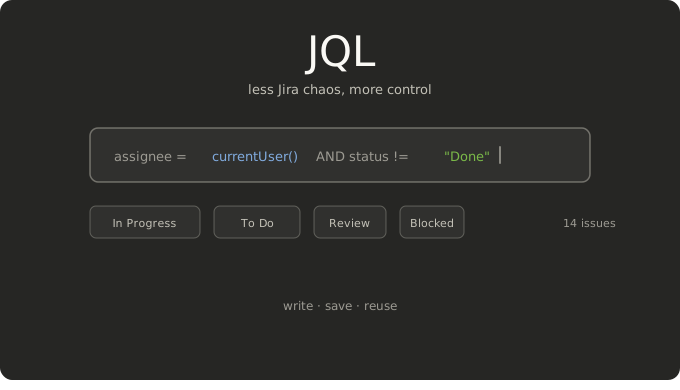
Working with Jira can feel like searching through an endless backlog — especially when there are multiple active projects or the board is showing too much at once. JQL (Jira Query Language) turns that noise into saved filters, dashboards, and shared views your whole team can reuse.
I use it every day. What makes the biggest difference isn't memorizing complex syntax — it's having a few well-tested queries saved with names that everyone on the team understands.
If you are not sure where to open JQL in Jira yet, this short walkthrough shows how to get there:
The Basic Structure: Field, Operator, Value
Almost every JQL query follows this pattern:
field operator value
Concrete examples:
project = WEB
status != Done
summary ~ "login"
The ~ operator means "contains" — useful for searching inside text fields.
When you combine conditions, AND narrows results and OR expands them. Use parentheses when mixing both to avoid unexpected results:
project = WEB AND (status = "To Do" OR status = "In Progress") AND priority = High
Autocomplete: Your Best Friend
When typing in Jira's advanced search mode, the interface suggests fields, operators, and values based on your instance. Use it — it prevents typos in status names and shows you which operators apply to which fields.
Before saving any query, run it and check that the number of results makes sense. If you're seeing double what you expected, look for an OR where you meant AND, or missing parentheses.
Text Search: summary vs text
summary ~ "something"→ searches only the ticket title.text ~ "something"→ searches across multiple fields: title, description, comments, and custom text fields.
Use text when you're not sure whether the word was in the title or the description.
Queries You'll Use Every Week
Replace the names (Done, In Review, WEB) with the ones from your instance.
Your work and your team's
assignee = currentUser() AND statusCategory != Done ORDER BY updated DESC
assignee IN membersOf("group-name") AND statusCategory != Done
Open sprint
sprint in openSprints() AND resolution = Unresolved ORDER BY rank ASC
Overdue or upcoming due dates
due < now() AND statusCategory != Done ORDER BY due ASC
Recent activity (useful for standups)
project = WEB AND updated >= -1d ORDER BY updated DESC
resolved >= -14d AND assignee is not EMPTY ORDER BY resolved DESC
Tickets stuck for too long
status = "To Do" AND created <= -7d ORDER BY created ASC
High-priority open bugs
project = WEB AND type = Bug AND priority in (High, Highest) AND statusCategory != Done
By version or release
project = WEB AND fixVersion = "2.4.0" ORDER BY priority DESC, updated DESC
fixVersion in unreleasedVersions() AND project = WEB
Tracking History with WAS and CHANGED
These operators filter by a ticket's change history, not just its current state. Useful when someone asks "what went back to To Do?" or "what moved out of Done this week?"
project = WEB AND status was Done AND status = "To Do"
project = WEB AND status changed from "To Do" to "In Progress"
WASandCHANGEDaren't available in all Jira editions. If the editor shows an error, check whether your instance (Cloud or Data Center) supports them.
From Query to Saved Filter
The workflow is straightforward:
- Refine the query in advanced search until the results look right.
- Save it as a filter with a clear name:
WEB — In Review This Week. - Reuse it in dashboards, boards, or email subscriptions.
This gives the team consistent views without relying on everyone configuring their board the same way.
Common Mistakes
- Statuses with spaces need quotes:
status = "In Review". - Project keys are case-sensitive and uppercase:
WEB, notweb. - Custom fields: use the name shown in autocomplete. If it doesn't appear, try
customfield_XXXXX. - Performance on large instances: avoid queries without a project filter on big backlogs. Atlassian has JQL optimization recommendations if you notice slowness.
Conclusion
JQL isn't about memorizing syntax — it's about asking clear questions of your backlog and saving the answers where your team can reuse them. Start with autocomplete, test before saving, and once you're comfortable with sprint, date, and text queries, the time you spend searching in Jira drops significantly.