Google Lighthouse: A Practical Guide for Developers
What Lighthouse is, how to run it in Chrome DevTools, CLI, or CI, what to look for in the report, and why a score of 100 doesn't tell the full story about real-world performance.
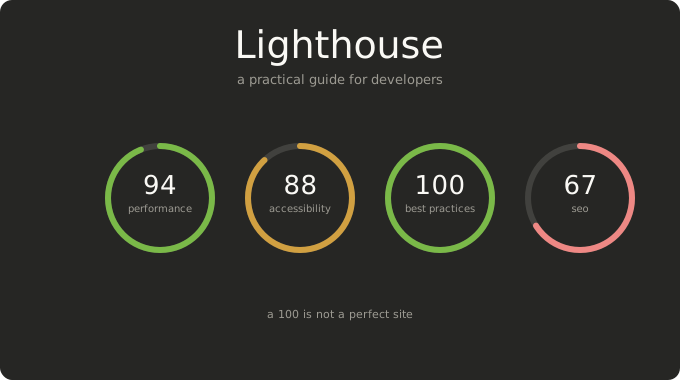
Lighthouse is an open-source tool from Google that audits web pages and gives you a report with scores and recommendations. It covers performance, accessibility, best practices, SEO, and, when relevant, PWA (Progressive Web App).
This article covers how to use it day-to-day, what to pay attention to in the report, and a few tips that make a real difference — without confusing lab data with what your actual users experience.
Why You Should Use Lighthouse
- Fast, actionable feedback: in seconds you get a prioritized list of issues and suggestions, without setting up a complex testing environment.
- Covers multiple dimensions: it isn't only about "the page feels slow" — it also checks contrast, accessible labels on controls (forms, buttons), HTTPS, meta tags, and resources that block rendering.
- Fits into your workflow: run it from Chrome DevTools, the command line, or integrate it into CI to catch regressions before they reach production.
- Works alongside other tools: PageSpeed Insights layers lab results (Lighthouse) with field metrics when available—often from CrUX. Cross-checking both beats trusting either alone (see below).
Lab data, field data, CrUX, and RUM
These terms get used interchangeably; they are not the same thing.
- Lab data is what Lighthouse measures: a synthetic run with a fixed device profile and throttled network in a controlled session. Strong for debugging and CI because it is repeatable.
- Field data (real-user metrics) comes from real page loads—many devices, networks, cache states, and regions, summarized over time (e.g. LCP at the 75th percentile).
- CrUX (Chrome User Experience Report) is a public field dataset Google builds from Chrome clients that opt in to sharing usage stats. PageSpeed Insights can surface CrUX for a URL or whole origin when there is enough traffic; you do not deploy tracking code, but low-traffic pages may show no field section.
- RUM (Real User Monitoring) is your production instrumentation—you send Web Vitals (or similar) from the browser to your analytics or APM so you can slice by release, route, market, or device. Use it when you need detail CrUX cannot provide (thin traffic, authenticated flows, your own attribution).
Things to consider
I've run into this more than once: running Lighthouse against localhost in dev mode (npm run dev) as if it were production, without a production build. The scores can look alarmingly bad because dev servers typically ship unminified bundles, extra JavaScript (hot reloading, dev-only runtime), source maps, and checks that aren't present in what you deploy. To get numbers closer to what users see, run npm run build and then npm run start (or audit your deployed URL) and measure that.
What Lighthouse Audits
| Category | What it checks |
|---|---|
| Performance | Load times, interactivity, visual stability, resource weight |
| Accessibility | Automated subset of a11y issues — many things still need manual review |
| Best Practices | Basic security, deprecated APIs, console errors |
| SEO | Metadata, links, mobile indexability |
| PWA (Progressive Web App) | Service worker, manifest, offline support |
Scores range from 0 to 100. A rough guide: below 50 is red, 50–89 is amber, 90 and above is green. Use these as a signal, not a pass/fail certificate.
How to Run Lighthouse
Chrome DevTools (best for local iteration)
- Open the page in Chrome.
- Open DevTools → Lighthouse tab.
- Choose categories and device (mobile is the standard).
- Click Analyze page load.
This is the most practical option for local pages or authenticated routes, since it runs inside your existing Chrome session.
CLI (automation and CI)
npm install -g lighthouse
lighthouse https://your-site.com --output html --output-path report.html
To audit only specific categories:
lighthouse https://your-site.com --only-categories=performance,accessibility
Export to JSON if you want to store results or open them in the Lighthouse report viewer.
PageSpeed Insights
Paste a public URL and you get Lighthouse (lab) plus, when Google has enough samples, CrUX field metrics for that URL or origin—no instrumentation on your side. For what CrUX is—and how it differs from RUM you control—see Lab data, field data, CrUX, and RUM above.
What to Focus on in the Report
Core Metrics
- FCP (First Contentful Paint): when the first text or image appears on screen.
- LCP (Largest Contentful Paint): when the main visible element finishes loading.
- TBT (Total Blocking Time): how long the main thread was blocked by JavaScript.
- CLS (Cumulative Layout Shift): how much elements shift around during load.
Opportunities vs Diagnostics
- Opportunities: specific changes with estimated time savings. Prioritize the ones with the biggest impact first.
- Diagnostics: additional context about the DOM, third-party scripts, fonts, etc. Useful for understanding the root cause.
Audits worth checking on every run:
- Unused JavaScript
- Cache policy on static assets
- Text visible while fonts load (
font-display) preconnectto critical origins- Unnecessary redirects
- Heavy animated GIFs: replace them with video (e.g. MP4/WebM via
<video>or a short embed); GIFs store every frame as a bitmap and usually weigh orders of magnitude more than the same motion in compressed video
Accessibility: Don't Trust the 100 Alone
Lighthouse covers only the accessibility issues that can be detected automatically. Many others — keyboard navigation order, focus management, state announcements — require manual testing. A score of 100 doesn't mean your site is accessible to everyone.
Useful Tips
- Run in incognito mode: prevents Chrome extensions from skewing results.
- Keep emulation consistent: use the same device and screen size every time so you can compare audits meaningfully.
- Save the JSON: you can reload old reports in the viewer and track changes over time.
- Be careful with
preload: only addrel=preloadafter measuring — preloading the wrong resource can delay the first render. - Watch third-party scripts: filter by "third party" in the Network tab and cross-reference with script evaluation time. Many regressions come from analytics, widgets, or ads.
- Integrate into CI: set minimum score thresholds in your pipeline to catch regressions automatically. Lighthouse CI makes this straightforward.
The Honest Caveat: A 100 Is Not a Perfect Site
Lighthouse runs in simulated lab conditions. That's useful for catching technical problems, but it doesn't reflect what your users actually experience on their devices and networks.
What Lighthouse tells you → specific technical issues and regressions.
What real users experience → field data. Public aggregates such as CrUX (when your URL or origin has enough Chrome traffic) plus RUM when you instrument the site yourself and own the breakdowns.
The right combination is still Lighthouse during development, plus PageSpeed (CrUX when it appears) and, as you grow, RUM or other field tooling for production-specific questions.
Conclusion
Run Lighthouse early and often. It's cheap to execute, gives your team a shared vocabulary — LCP, CLS, TBT — and connects performance, accessibility, and SEO improvements in one place. Pair it with manual accessibility testing and real user metrics when your traffic justifies it.